GitHub Pages for Beginners: Put Your First HTML Page Online for Free
In this lesson
To host a website on GitHub Pages, you put your files in a public GitHub repository, switch Pages on in that repository's settings and wait a few minutes. The site appears at a github.io address, served over HTTPS, and costs nothing. It is the natural next step after the HTML and CSS lesson, which ended with a page that worked on your own computer and nowhere else.
GitHub Pages is for personal pages, portfolios, project sites and learning. It is not for a business: GitHub's own documentation says Pages is not to be used as free hosting for an online business, an e-commerce site or commercial software as a service. If your site will sell something, read the last section of this lesson before you start, because it will save you a move later.
Everything below was checked against GitHub's documentation on 10 October 2026.
Before you start: one folder, one index.html
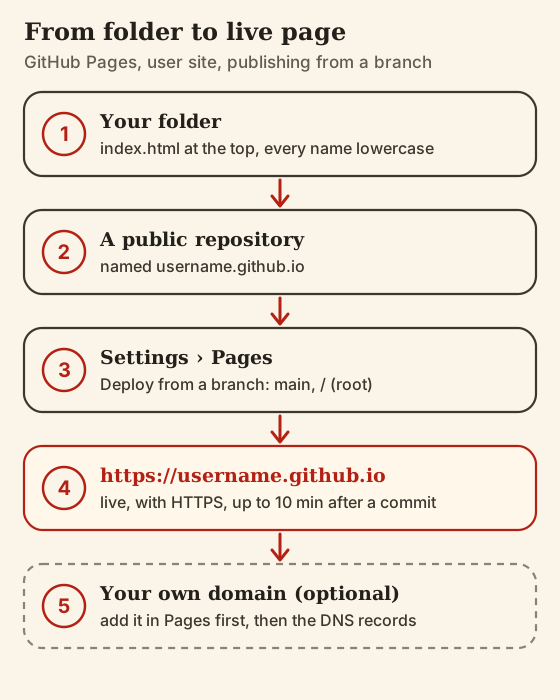
You need three things: a GitHub account, the folder from the previous lesson and a browser. The folder needs a file called index.html at its top level, because that is the entry file GitHub Pages looks for when someone visits the bare address. It will also accept index.md or README.md, but for a hand-written site index.html is the one you want. Keep the stylesheet and images beside it or in subfolders, with every filename in lowercase.
Settle one question now: who can see the source. On GitHub's free plan, the repository a Pages site is published from has to be public, so anyone can read every file in it. Publishing from a private repository needs a paid plan such as GitHub Pro or Team, and even then GitHub states that the published site is public on the internet. Treat the whole folder as something you are happy for strangers to read, and keep drafts, notes and anything resembling a password somewhere else.
Step by step: from folder to live page
There are two kinds of Pages site. A user site lives in a repository named exactly username.github.io and appears at https://username.github.io. A project site lives in any other repository and appears at https://username.github.io/repository-name. For a first site, choose the user site: the address is shorter, and paths that start with a slash behave the way they did on your computer.
- Sign in to GitHub and create a new repository named username.github.io, using your own username in lowercase. Make it public.
- On the new repository's page, choose to upload existing files, drag in the contents of your folder (not the folder itself) and commit them to the main branch.
- Open Settings, then Pages in the sidebar. Under Build and deployment, set Source to Deploy from a branch, pick main and the / (root) folder, and save.
- Wait. GitHub says changes can take up to 10 minutes to publish after you push them.
- Visit https://username.github.io. If your page is there, it is live, with a certificate, on the public internet.
Every later change works the same way: edit a file, commit it to main, and the site republishes itself. The upload page in the browser is fine for a handful of files. Once you are changing the site every week, learn enough Git to commit from your own computer; that is what GitHub really is, and it gives you a complete history of every version of your site for free. One technical detail is worth knowing early. When you publish from a branch, GitHub runs your files through Jekyll, a static site generator, by default. If you would rather your files were served exactly as you uploaded them, add an empty file named .nojekyll at the top of the repository, which GitHub's documentation gives as the way to skip that build.
Adding your own domain: the records, drawn
A github.io address is fine for learning. For anything that goes on a business card or a CV, point a domain you own at the site instead. The order matters here: add the domain in the repository first and change DNS second. GitHub warns that doing it the other way round can let someone else host a site on your domain's subdomains.
In Settings, Pages, type your domain under Custom domain and save. Then, wherever your domain's DNS is managed, create the records GitHub publishes. For the bare domain, four A records pointing at 185.199.108.153, 185.199.109.153, 185.199.110.153 and 185.199.111.153; if your DNS host supports IPv6, add four AAAA records for 2606:50c0:8000::153 through 2606:50c0:8003::153 as well. For www, one CNAME record pointing at username.github.io, your user address with no repository name after it. GitHub recommends setting up both the bare domain and www, and strongly recommends against wildcard records such as *.example.com.
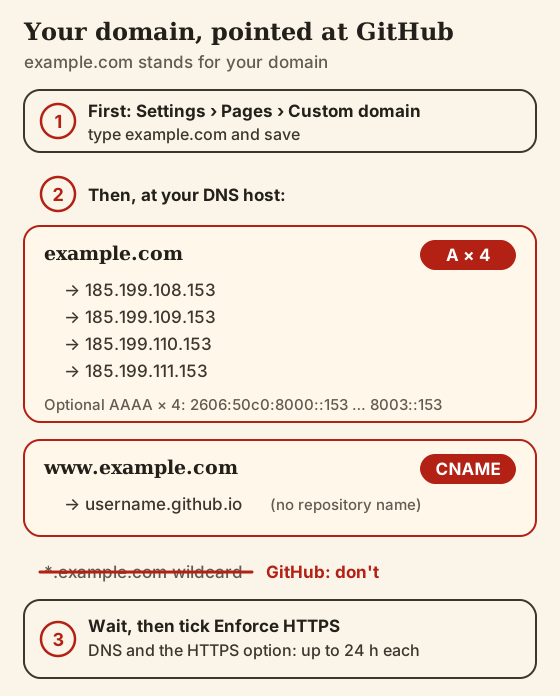
Then wait, twice. GitHub says DNS changes can take up to 24 hours to propagate, and that the Enforce HTTPS option can take up to 24 hours to become available after the domain is set up. In practice the first wait follows the TTL on whatever records you replaced, as the lesson on domains, DNS and hosting explains. When the checkbox appears, tick it. And if your registrar created default records when you bought the domain, delete those before adding GitHub's, or the old and new answers will compete.
The limits, and the rules
The limits are generous for a personal site and printed plainly. Most people never come near them. The rules underneath them are what decide whether you can use GitHub Pages at all, so read both columns of this table, and read the last row twice.
| What | GitHub Pages | Cloudflare Pages Free |
|---|---|---|
| Size | Published site up to 1 GB; source repository recommended under 1 GB | Up to 20,000 files; 25 MiB per file |
| Bandwidth | Soft limit of 100 GB a month | No bandwidth limit listed |
| Builds | Soft limit of 10 an hour (not for custom Actions workflows) | 500 a month, one at a time |
| Time to deploy | Times out after 10 minutes | Builds time out after 20 minutes |
| Custom domains | Yes, with an Enforce HTTPS option | Up to 100 per project |
| Commercial use | Not as free hosting for an online business, e-commerce or commercial SaaS | Not covered on the limits page; read Cloudflare's terms |
Soft limits are not walls. If a site goes over, GitHub says it may not be able to serve it, its support team may email suggesting a CDN in front or a different host, and rate-limited visitors get an HTTP 429 response. The hard line is the other one. GitHub Pages is not to be used as free hosting for an online business, an e-commerce site or commercial software, and not for sensitive transactions such as sending passwords or credit card numbers. A portfolio that shows your work is exactly what it is for. A page whose job is to sell is not.
Five things that break on first publish
Almost every failed first publish comes down to one of these five, and none of them is GitHub's fault.
1. Capital letters in filenames
Your computer probably treated Logo.PNG and logo.png as the same file. The web server does not. If an image or stylesheet loads locally and returns a 404 online, compare the capitals in the filename with the capitals in the HTML, then rename the file to lowercase rather than editing the link.
2. Paths that assume the wrong root
A path that starts with a slash, like /style.css, starts at the root of the site. On a user site the root is the top of your repository, as expected. On a project site the root is one level above your files, so every slash-first path misses. Use a user site, or switch to relative paths such as style.css.
3. No index.html at the top
If the address shows a 404, or your README instead of your page, the entry file is missing, misnamed or tucked inside a subfolder. GitHub looks for it at the top level of the folder you chose to publish and nowhere below that.
4. The wrong branch or folder
The Pages setting publishes one branch and one folder: the root or /docs. Upload to a different branch, or choose /docs while your files sit at the root, and the site publishes nothing useful. Check the setting against where the files actually are before you check anything else.
5. Mixed content after Enforce HTTPS
Once the site is served over HTTPS, browsers refuse to load scripts and stylesheets requested over plain http, and flag insecure images. If something vanished the day you ticked the box, search your HTML for http:// and change those addresses to https://.
When to move off GitHub Pages
Move the day one of three things becomes true. The site starts selling, taking bookings or charging for access, which takes it outside the terms. Someone who does not use Git needs to edit it. Or it needs something static files cannot do alone, such as a database behind a login. None of those means the first site failed; they are signs that it grew.
Where to go depends on who will run it. If you want to keep writing files, any paid static or shared host takes the same folder under terms written for commercial use. If someone else will edit the content, a CMS on rented hosting gives them an editor; SiteGround is one example of a host for that, and that is an affiliate link, one of two on this site. If nobody wants to maintain anything, a hosted builder takes the whole job off your hands for a monthly fee. The lesson on what a website costs prices each of those over five years.
Where this sits in the course
This lesson finishes the hand-coded route: a blank file, a page, and now an address. If you are still deciding whether that route is yours at all, the complete guide to how to make a website sets it beside the builder and CMS routes.
Questions from the class
Is GitHub Pages free?
Can I use a custom domain with GitHub Pages?
How long does GitHub Pages take to update?
Is my code public if I use GitHub Pages?
Do I need to know Git to use GitHub Pages?
Before you move on
- Your entry file is index.html, in lowercase, at the top of the repository.
- The repository is named username.github.io, and the site loads at that address.
- Nothing in the repository is something you would not publish.
- If you added a domain, it went into the Pages settings before the DNS records did.
- Enforce HTTPS is ticked, and the browser shows no mixed-content warnings.
- The site sells nothing, or you know where it moves when it starts to.
That’s the syllabus. Put it together with the complete path from zero to live.